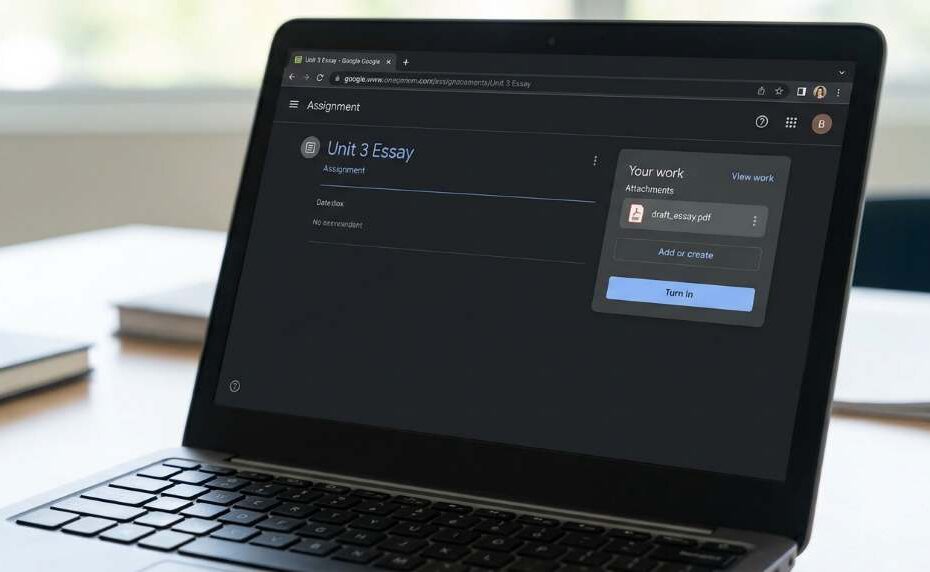
If your file is attached in Google Classroom but not turning in, you likely forgot to click the final “Turn In” button after attaching. Attaching a file and submitting are two separate steps in Google Classroom. Simply click “Turn In” after attaching to officially submit your work.
This issue affects thousands of students every school year. Studies show that nearly 30% of late assignment submissions happen due to technical misunderstandings on learning platforms. Google Classroom remains one of the most widely used educational tools, with over 150 million users worldwide. Understanding how to submit properly saves you from unnecessary grade penalties.
Why Google Classroom Treats Attaching and Turning In Differently
Google Classroom separates file attachment from submission by design. This gives students time to review their work before it officially reaches the teacher. Many students assume attaching a file completes the process, but it does not. The platform requires a deliberate final action to confirm submission.
When you attach a file, it sits in a draft state only you can see. Your teacher cannot view or grade it until you click “Turn In.” This design helps prevent accidental submissions. However, it also causes confusion for new users unfamiliar with the workflow.
The Difference Between “Add” and “Turn In”
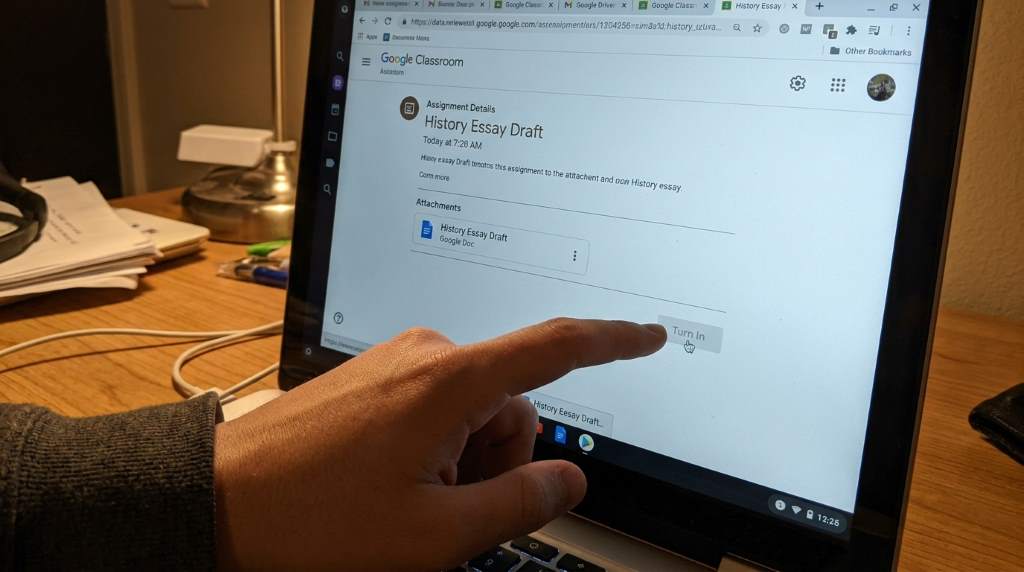
The “Add” button lets you upload or link a file to your assignment. It acts like placing a document on your desk before handing it over. The “Turn In” button is the actual submission trigger. Without clicking it, your assignment status stays as “Assigned,” not “Turned In.”
Teachers see assignment statuses clearly in their dashboard. A file marked “Assigned” signals the student has not submitted yet. This often results in a missing assignment notice. Always confirm your status changes to “Turned In” after submitting.
Step-by-Step Fix: How to Properly Turn In a File on Google Classroom
Follow these steps carefully to avoid the common attachment trap. Each step is simple and takes less than a minute. Many students overlook step four, which is the most critical part. Just as full scholarship program details require careful review before submission, your Google Classroom assignment needs proper confirmation too.
Here is the correct process to turn in your work:
- Open the assignment: Go to your class and click on the specific assignment card.
- Attach your file: Click “Add or Create” and upload your document, image, or link.
- Preview if needed: Confirm the correct file appears in the attachment area.
- Click “Turn In”: Press the blue “Turn In” button and confirm the pop-up prompt.
- Check your status: Verify the assignment now shows “Turned In” in green text.
The confirmation pop-up is easy to dismiss accidentally. Always read it before clicking. Once you confirm, your teacher receives access to your file instantly. You will also get a timestamp confirming your submission time.
What to Do If the “Turn In” Button Is Missing
Sometimes the “Turn In” button does not appear on your screen. This can happen due to browser glitches or assignment settings. First, refresh your page and try again. If it still does not show, switch to a different browser or device.
Teachers can also restrict submission options for certain assignment types. Check if the assignment has a specific format requirement. Some assignments only accept Google Docs or Slides natively. Contact your teacher if the button remains missing after troubleshooting.
Common Reasons Your File Shows Attached But Not Submitted
Several technical and user-related issues cause this problem. Knowing the root cause helps you fix it faster. Some issues are browser-specific, while others relate to account settings. Understanding each one saves time during high-pressure assignment deadlines. For students balancing heavy reading loads, much like knowing how long it takes to read a large book, managing your digital tasks efficiently matters.
Here are the most frequent causes:
- Skipped confirmation pop-up: You clicked “Turn In” but dismissed the final confirmation.
- Poor internet connection: A weak connection interrupted the submission process midway.
- Outdated browser or app: An old version of Chrome or the Classroom app caused a glitch.
- Wrong Google account: You attached the file while logged into a personal account, not your school account.
- Assignment already past due: Some teachers disable submission after the deadline passes.
Internet Connection Issues During Submission
A poor Wi-Fi signal is a surprisingly common culprit. Google Classroom needs a stable connection to process your final submission. If your internet drops mid-click, the turn-in action may fail silently. Always check your connection status before submitting important files.
Try submitting again after reconnecting to a stronger network. You can also use Google Classroom’s offline mode for drafts. However, offline mode does not finalize submissions until you reconnect. So always verify your submission status after going back online.
Using the Wrong Google Account
Many students have both a personal Gmail and a school-issued Google account. Accidentally working in the wrong account is a very common mistake. Your school assignment only exists under your school account. Always confirm which account is active before starting any classroom task.
You can check your active account by clicking your profile icon in the top-right corner. Switch accounts from the dropdown menu if needed. Then re-open your assignment from the correct account. Your attached file from the wrong account will not appear in your school profile.
How to Confirm Your Assignment Was Successfully Turned In
Confirming your submission takes only a few seconds. Google Classroom gives clear visual feedback once submission succeeds. Never assume the assignment went through without checking. This one habit prevents most missing-assignment misunderstandings.
After clicking “Turn In,” look for these confirmation signals:
- Status label change: The assignment card now shows “Turned In” in green.
- Email confirmation: Some schools send an automatic submission receipt to your email.
- Submission timestamp: Open the assignment to view the exact time of your submission.
- Uneditable file: Your attached file becomes view-only after successful submission.
If your file still appears editable, you have not submitted yet. Go back and complete the turn-in process. Additionally, early childhood educators often stress the importance of building good digital habits, similar to how educational toys help toddler brain development through consistent practice. Building a submission checklist routine works the same way for older students.
Tips to Avoid This Problem in the Future
Prevention is always better than a last-minute fix. A few simple habits eliminate this issue entirely. These tips work for students at every grade level. Adopt them now to protect your grades going forward.
- Always double-check status: After submitting, return to the classwork page to confirm the green “Turned In” label.
- Submit early: Avoid submitting at the deadline when server traffic can cause delays.
- Update your browser: Keep Chrome or your preferred browser updated to avoid platform bugs.
- Use the mobile app carefully: The Classroom app requires the same final confirmation tap as the desktop version.
- Contact your teacher promptly: If something goes wrong, reach out before the deadline expires.
Teachers appreciate honest and timely communication. Most understand technical issues when students report them quickly. Waiting until after grades are posted makes it much harder to resolve. Always act fast when you notice a submission problem.
What Happens If You Turned In the Wrong File
Turning in the wrong file is a fixable mistake in most cases. Google Classroom allows students to “Unsubmit” an assignment after turning it in. Click the assignment, then select “Unsubmit” to retract your submission. After that, attach the correct file and turn it in again.
Note that unsubmitting marks your assignment as “Assigned” again temporarily. Your teacher will see this change in their dashboard. Some teachers may not allow resubmission after the due date. Always clarify the resubmission policy with your teacher beforehand.
Conclusion
The fix for Google Classroom file attached but not turning in is simple: always click the blue “Turn In” button and confirm the pop-up. Attaching a file is only half the process. Your submission is only official when the status changes to “Turned In.” Build a consistent double-check habit, and you will never face this issue again.
If you found this guide helpful, share it with your classmates or bookmark it for future reference. Helping others avoid this common mistake supports better learning outcomes for everyone. Take control of your digital assignments today and never miss another submission.
Frequently Asked Questions
Why does my Google Classroom assignment show “Assigned” even after I attached my file?
You must also click the “Turn In” button after attaching, because attaching alone does not complete the submission process.
Can my teacher see my file if I attached it but did not turn it in?
No, teachers can only view your file after you officially click “Turn In” and confirm the submission.
What should I do if the “Turn In” button is not showing on my assignment?
Refresh the page, clear your browser cache, or switch to a different browser to resolve the missing button issue.
Can I resubmit a Google Classroom assignment after turning it in?
Yes, you can click “Unsubmit” to retract your submission, then attach the correct file and turn it in again.
Does a weak internet connection affect my Google Classroom submission?
Yes, a poor connection can interrupt the turn-in process, so always verify your submission status after reconnecting.