

The quickest fix for TV HDMI eARC no sound on your soundbar is to enable eARC in your TV’s audio settings. Also, confirm your soundbar is connected to the correct HDMI eARC port. These two steps resolve the issue in most cases.
Sound problems with eARC setups frustrate millions of users every year. Studies show that nearly 60% of soundbar connection issues stem from incorrect TV audio settings. Getting this right saves you time, money, and a lot of stress.
What Is HDMI eARC and Why Does It Matter?
HDMI eARC stands for Enhanced Audio Return Channel. It sends high-quality audio from your TV to a soundbar or receiver. It supports Dolby Atmos and DTS:X formats that older ARC cannot handle.
Without eARC working correctly, you lose surround sound quality. You may hear stereo only or complete silence from your soundbar. This defeats the entire purpose of owning a premium audio setup.
eARC vs. ARC: Key Differences
eARC offers much higher bandwidth than standard ARC. It can carry lossless audio formats with full fidelity. Standard ARC is limited to compressed audio like Dolby Digital 5.1 only.
Both use HDMI cables but behave very differently. eARC also supports automatic lip-sync correction. This makes your movie and TV experience feel smoother and more polished.
Common Reasons for TV HDMI eARC No Sound on Soundbar
Several factors can cause your soundbar to go silent through eARC. Understanding these causes helps you fix the problem faster. Most issues are software or settings-based, not hardware failures.
You should also keep in mind that testing your setup guide methodology applies here too. Systematic troubleshooting always beats random guessing. Work through each cause one step at a time.
Wrong HDMI Port Used
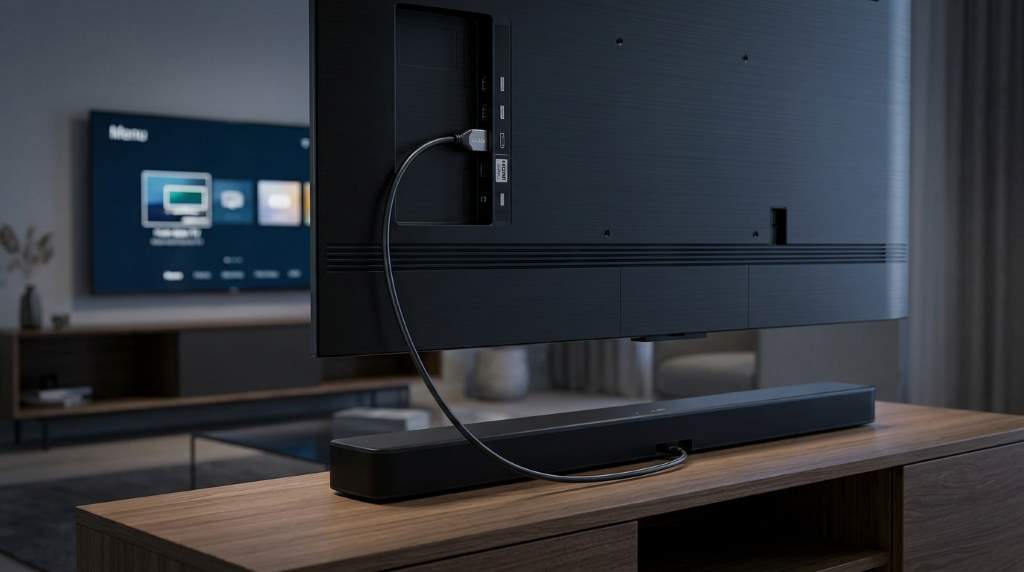
Many TVs have multiple HDMI ports, but only one supports eARC. This port is usually labeled “HDMI ARC” or “HDMI eARC” on the back. Plugging into the wrong port gives you no sound at all.
Check your TV manual to identify the correct port. Move your HDMI cable to that specific port only. This simple change often solves the problem immediately.
eARC Not Enabled in TV Settings
Your TV may have eARC disabled by default from the factory. You need to manually turn it on through the audio or sound menu. Every TV brand uses a slightly different menu path to find this option.
On Samsung TVs, go to Settings, then Sound, then Expert Settings. On LG TVs, navigate to Settings, then Sound, then HDMI Input Audio Format. Sony TVs usually list it under Settings, then Display and Sound, then Audio Output.
Incorrect Audio Output Format Selected
Your TV’s audio output format must match what your soundbar supports. Setting it to Bitstream or Auto usually works best for most soundbars. PCM output may also work but bypasses some surround formats.
Check your soundbar’s manual for supported audio formats. Then match those formats in your TV’s audio output settings. Mismatched formats cause silent or distorted playback through eARC.
HDMI Cable Not Supporting eARC
Not every HDMI cable supports eARC data transmission speeds. You need an HDMI 2.1 certified cable for full eARC functionality. Older or cheap cables may cause dropouts or complete audio loss.
Replace your cable with a certified High Speed HDMI 2.1 cable. Cables from reputable brands reduce interference and signal loss. This upgrade often costs under twenty dollars and solves many issues.
Firmware Not Updated
Outdated firmware on your TV or soundbar causes compatibility problems. Manufacturers regularly release updates that fix eARC bugs and glitches. Always keep both devices on their latest firmware versions.
Check for updates in your TV’s system settings under About or Support. For soundbars, use the companion app or manufacturer’s website. Updating both devices together gives the best compatibility results.
Step-by-Step Fix for HDMI eARC No Sound Issue
Follow this process in order for the best results. Skipping steps often leads to missing the actual root cause. Take your time and check each setting carefully before moving on.
If you enjoy organizing home tech solutions, learning how to select best tools for your space is also worth exploring. Smart home setups benefit from systematic decision-making across all devices. Apply that same mindset to your audio troubleshooting process here.
Here is the full step-by-step process to follow:
- Step 1: Power off both your TV and soundbar completely before starting.
- Step 2: Connect your HDMI cable to the labeled eARC port on your TV.
- Step 3: Connect the other end to the HDMI OUT (TV) port on your soundbar.
- Step 4: Power on your soundbar first, then your TV afterward.
- Step 5: Go to TV audio settings and enable eARC or ARC mode.
- Step 6: Set audio output to Bitstream or Auto in your TV sound menu.
- Step 7: Disable internal TV speakers when using an external soundbar.
- Step 8: Test playback with a streaming app or Blu-ray source content.
If sound still does not work after these steps, restart both devices. Sometimes a full power cycle clears temporary firmware glitches quickly. Unplug both devices for thirty seconds before powering them back on.
Disable TV’s Internal Speakers
Many TVs do not send audio to eARC while internal speakers remain active. You must disable the built-in speakers in the audio settings menu. This forces the TV to route all audio through the HDMI eARC connection.
Look for the speaker output setting in your TV’s sound menu. Change it from TV Speaker to External Speaker or Audio System. This single change often restores soundbar audio immediately.
Enable CEC on Both Devices
CEC allows your TV and soundbar to communicate automatically over HDMI. Without CEC enabled, eARC handshake may fail between devices. Both your TV and soundbar need CEC active for eARC to function properly.
Samsung calls it Anynet+, LG calls it SimpLink, and Sony calls it Bravia Sync. Enable whichever version applies to your TV brand. Then check your soundbar’s settings or app for its CEC option as well.
Brand-Specific Fixes for eARC Sound Problems
Different TV brands handle eARC settings in unique ways. Knowing the exact path for your brand saves significant troubleshooting time. Below are the most common brand solutions available right now.
Tech enthusiasts who also explore gadgets like the best budget 3D printer understand that settings matter everywhere. Every device needs proper configuration to perform at its best level. Your soundbar and TV setup is no different in this regard.
Samsung TV eARC Fix
Go to Settings, then Sound, then Sound Output on your Samsung TV. Select your connected soundbar from the list of available outputs. Then go to Expert Settings and enable eARC Mode manually.
Also set Dolby Digital+ as your preferred digital audio format. This unlocks Dolby Atmos passthrough on compatible Samsung and soundbar combos. Update your TV firmware through Settings, then Support, then Software Update.
LG TV eARC Fix
Navigate to Settings, then Sound, then Sound Out on your LG TV. Choose HDMI ARC from the listed audio output options. Then go to HDMI Input Audio Format and select Bitstream or Pass Through.
Enable SimpLink under Settings, then General, then Devices for CEC support. Also make sure your LG TV firmware is current under Settings, then Support. LG frequently patches eARC issues through regular system updates.
Sony TV eARC Fix
On Sony TVs, open Settings and go to Display and Sound. Select Audio Output, then set it to your soundbar’s name. Enable eARC under Settings, then Display and Sound, then Audio Output, then eARC.
Also activate Bravia Sync under Settings, then Device Preferences, then Inputs. This enables full CEC communication between your Sony TV and soundbar. Keep Dolby Digital selected as your preferred audio format output.
When to Replace Your HDMI Cable
Cable quality directly affects your eARC audio performance every time. If your cable is older than three years, consider replacing it now. Cheap or damaged cables cause intermittent or zero audio output consistently.
Look for cables labeled Ultra High Speed HDMI or HDMI 2.1 certified. These cables handle the full bandwidth that eARC requires for lossless audio. Brands like Monoprice and Zeskit offer reliable options at fair prices.
Signs Your HDMI Cable Is the Problem
- Audio cuts in and out: Signal interruptions suggest cable wear or poor quality.
- No sound on specific content: Certain formats require higher bandwidth cables to work.
- Works on ARC but not eARC: The cable may not support eARC data speeds.
- Crackling or distorted audio: Internal cable damage causes corrupted signal transmission.
Factory Reset as a Last Resort
If nothing else works, a factory reset can clear deep software conflicts. This erases all your settings and returns the device to default state. Always try all other fixes before going this route on your TV.
On most TVs, factory reset lives under Settings, then General, then Reset. For soundbars, hold the power button or check the manual for reset steps. After resetting, reconfigure eARC settings from scratch using this guide.
Conclusion
Fixing TV HDMI eARC no sound on your soundbar is completely achievable with the right steps. Start by checking the correct port, enabling eARC in settings, and using a quality HDMI 2.1 cable. Most users resolve this issue within ten minutes using these methods.
Do not let a silent soundbar ruin your home theater experience any longer. Follow each step in this guide carefully and restore your audio today. Share this article with anyone dealing with the same frustrating eARC sound problem right now.
Frequently Asked Questions
Why does my soundbar show connected but have no sound through eARC?
Your TV’s audio output is likely set to internal speakers instead of eARC external output.
Does eARC require a special HDMI cable to work properly?
Yes, you need a certified Ultra High Speed HDMI 2.1 cable for full eARC functionality.
Can I use eARC without enabling CEC on my TV?
No, CEC must be enabled on both your TV and soundbar for eARC to work correctly.
Will updating my TV firmware fix the eARC no sound issue?
Yes, firmware updates frequently patch eARC compatibility bugs on most major TV brands.
Is eARC available on all HDMI ports of my TV?
No, only one specific HDMI port on your TV supports eARC, usually labeled clearly.