
In today’s hyper-connected world, managing digital communication has become increasingly complex. Many people struggle with overwhelming notification alerts from various messaging platforms and social media apps. According to digital wellness experts at Media Watch UK, the average smartphone user receives over 80 notifications daily, creating significant stress and distraction.
The constant ping of notifications can disrupt productivity, sleep patterns, and overall well-being. However, completely muting all notifications isn’t always practical, especially when you need to stay connected for work or family emergencies. Fortunately, most modern devices and applications offer granular notification controls that allow you to customize your alert preferences.
When dealing with a particularly chatty contact or someone who sends frequent updates throughout the day, you might wonder: can you silence notifications for one person without affecting your other conversations? The answer is yes, and this comprehensive guide will show you exactly how to do it across various platforms and devices.
Understanding Notification Management
Modern smartphones and messaging applications provide sophisticated notification management systems. These systems allow users to create customized alert preferences for different contacts, groups, and applications. Rather than using a one-size-fits-all approach, you can tailor your notification experience to match your communication needs.
The key lies in understanding the difference between muting, blocking, and selective notification silencing. Muting typically disables all sounds and vibrations but may still show visual notifications. Blocking prevents all communication from reaching you entirely. Selective notification silencing, however, allows messages to arrive normally while suppressing the audio and visual alerts.
Silencing Notifications on iPhone
Using Focus Modes
Apple’s Focus feature provides powerful notification filtering capabilities. Additionally, you can create custom Focus modes that allow notifications from specific people while silencing others. This approach works across all iPhone applications, including Messages, WhatsApp, and third-party messaging apps.
To set up a custom Focus mode, navigate to Settings, then Focus. Create a new Focus mode and specify which contacts can send you notifications during this period. This method proves particularly useful during work hours or quiet time when you want to limit interruptions.
Individual Contact Settings
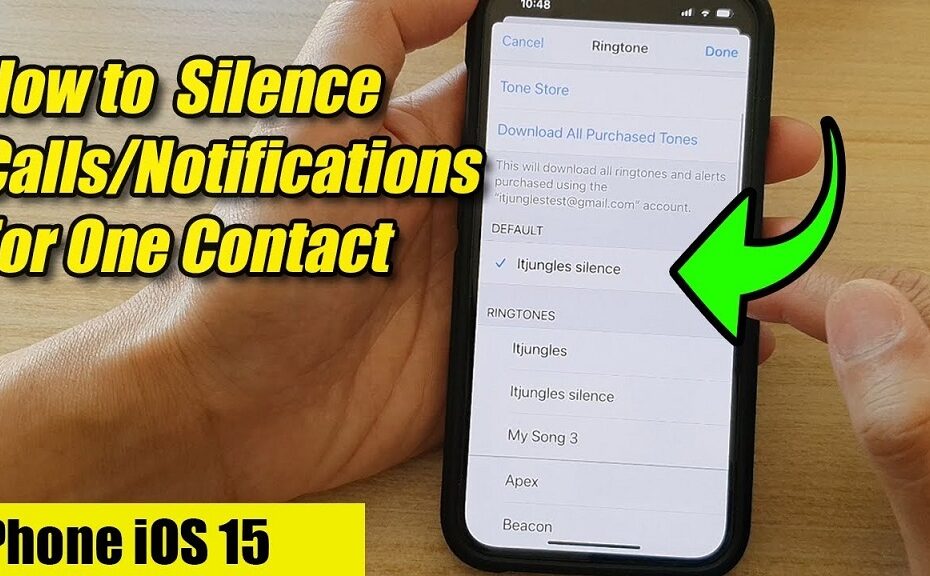
For more targeted control, iPhone users can modify notification settings for individual contacts within the Messages app. Open the conversation thread with the person whose notifications you want to silence. Tap the contact’s name at the top of the screen, then select “Hide Alerts.” This action will prevent notification sounds and banners while keeping the messages accessible in your inbox.
The Do Not Disturb while Driving feature also offers selective notification options. When enabled, it can automatically silence notifications from non-favorite contacts while allowing important calls and messages to come through.
Android Notification Controls
App-Specific Settings
Android devices provide extensive notification customization options through the system settings. Navigate to Settings, then Apps & Notifications, and select the specific messaging application. From there, you can configure notification channels, which allow granular control over different types of alerts within the same app.
Most Android messaging apps support conversation-specific notification settings. Long-press on a conversation thread in your messaging app, then look for notification or alert options. This method allows you to silence notifications for that particular contact while maintaining normal alert behavior for other conversations.
Priority Mode Configuration
Android’s Priority Mode offers another layer of notification management. When activated, it can filter notifications based on your predefined criteria, such as favorite contacts, specific apps, or certain keywords. This feature proves especially useful during meetings, sleep hours, or focused work sessions.
WhatsApp Notification Management
WhatsApp provides built-in tools for managing notifications from individual contacts and groups. Open the chat with the person whose notifications you want to silence, then tap their name or profile picture at the top. Select “Mute notifications” and choose your preferred duration: 8 hours, 1 week, or 1 year.
The muting feature in WhatsApp maintains message delivery while suppressing notification sounds, vibrations, and pop-up alerts. Messages from muted contacts will still appear in your chat list with a muted icon, allowing you to check them at your convenience.
Furthermore, WhatsApp allows you to customize notification tones for individual contacts. This feature enables you to assign subtle or silent tones to specific people while keeping regular notification sounds for others.
Instagram and Facebook Messenger
Social media platforms like Instagram and Facebook Messenger offer similar notification control features. In Instagram, navigate to the direct message thread with the person you want to silence. Tap the information icon, then select “Mute messages” or “Mute video chat.”
Facebook Messenger provides even more detailed notification options. Open the conversation, tap the contact’s name, and scroll down to find notification settings. You can choose to receive notifications for mentions only, turn off all notifications, or customize sound and vibration preferences.
These platforms also support notification scheduling, allowing you to automatically silence alerts during specific hours while maintaining normal notification behavior during your active times.
Email Notification Management
Email applications like Gmail, Outlook, and Apple Mail offer sophisticated filtering and notification rules. Create filters based on sender addresses to automatically categorize messages from specific people. These messages can be directed to separate folders with customized notification settings.
Gmail’s importance markers and priority inbox features help distinguish between critical and routine communications. Configure these settings to ensure important messages trigger notifications while routine updates from frequent senders remain silent.
Additionally, most email clients support VIP lists or priority senders, which can receive special notification treatment while other contacts follow standard rules.
Best Practices for Notification Management
Establishing clear boundaries around digital communication helps maintain both productivity and personal relationships. Consider implementing a notification strategy that aligns with your daily routine and communication needs.
Regular auditing of your notification settings ensures they continue to serve your current lifestyle. As relationships and work requirements change, your notification preferences should evolve accordingly. Therefore, schedule monthly reviews of your notification configurations across all devices and applications.
Remember that communication preferences vary among individuals. Some people may feel ignored if their messages don’t receive immediate responses, while others prefer asynchronous communication. Consider having open conversations about communication expectations with frequent contacts.
Troubleshooting Common Issues
Sometimes notification settings may not work as expected due to software updates, app conflicts, or system glitches. If selective notification silencing isn’t functioning properly, try restarting the specific application or your device entirely.
Check for app updates, as newer versions often include improved notification management features and bug fixes. Additionally, ensure your device’s operating system is current, as system-level notification improvements frequently accompany major updates.
Battery optimization settings can sometimes interfere with notification delivery. Review your device’s battery management settings to ensure messaging apps aren’t being overly restricted, which could affect both notification delivery and selective silencing features.
Conclusion
Managing notifications from individual contacts doesn’t require sacrificing your overall connectivity. Modern devices and applications provide numerous options for customizing alert preferences, allowing you to maintain important communications while reducing digital overwhelm.
The key lies in understanding the available tools and implementing a system that matches your personal and professional needs. Whether you choose to use built-in muting features, create custom notification rules, or leverage advanced filtering options, the goal remains the same: creating a more intentional and less disruptive digital communication experience.
Regular maintenance of your notification settings ensures they continue serving your evolving needs. As communication patterns change and new features become available, staying informed about notification management options helps you maintain control over your digital environment.
Read More Also: How to Use Aromatherapy from Bath and Body Works for Better Sleep
Frequently Asked Questions
Can I silence notifications from one person without them knowing?
Yes, silencing notifications from a specific person is completely private. The sender won’t receive any indication that their notifications have been muted. Messages will still be delivered normally, and you can read them at your convenience without triggering any alerts.
Will I still receive the messages if I silence notifications from someone?
Absolutely. Silencing notifications only affects the alerts you receive, not message delivery. All messages will continue to arrive in your inbox as usual. You can check and respond to them whenever you choose, but you won’t be interrupted by notification sounds or pop-ups.
How long do notification silence settings last?
This depends on the platform and your chosen settings. Some apps like WhatsApp offer time-limited muting options (8 hours, 1 week, or 1 year), while others maintain the setting indefinitely until you manually change it. Check your specific app’s documentation for exact duration details.
Can I silence notifications for group chats too?
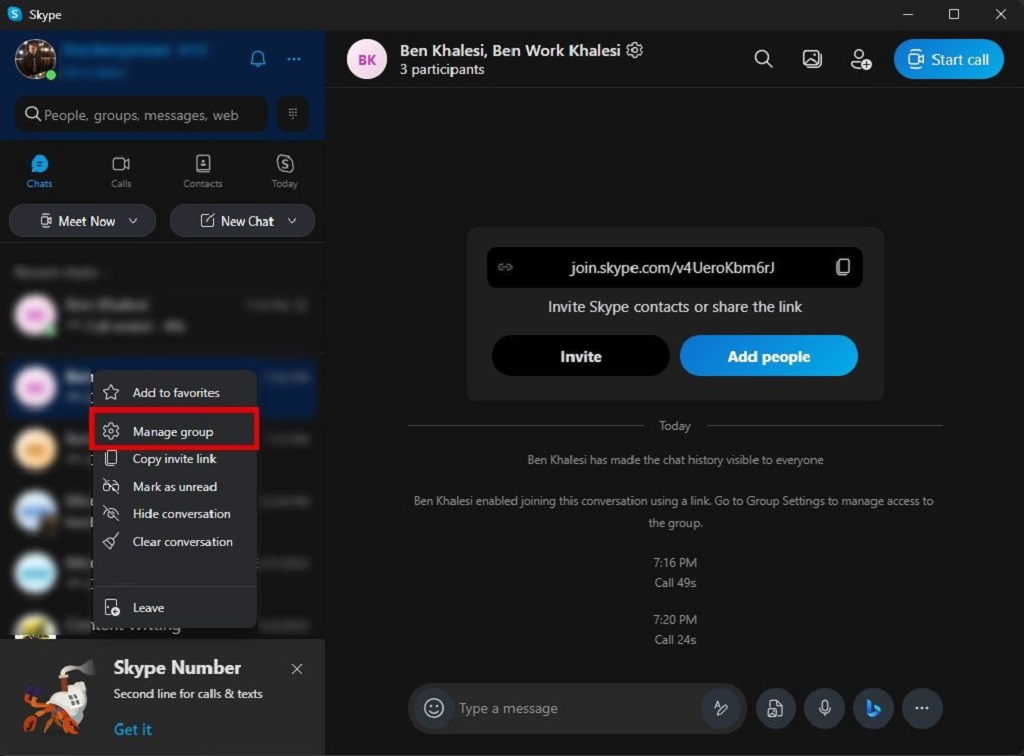
Yes, most messaging platforms allow you to mute notifications for group conversations using the same methods described for individual contacts. This feature proves particularly useful for active group chats that generate frequent messages throughout the day.
What’s the difference between muting and blocking someone?
Muting silences notifications while still allowing messages to be delivered and received normally. Blocking prevents all communication from reaching you entirely – the person cannot send you messages, and you won’t receive any communication from them until you unblock them.